PowerPoint Poster Templates and the PPTX Workflow
Most universities still expect posters as PowerPoint files: supervisors review them in PowerPoint, co-authors edit them in PowerPoint, and print offices print from them. This page covers the practical side of that workflow: getting a correctly sized .pptx, editing it without breaking the layout, and producing a PDF the printer accepts.
Every free design below is also a free PowerPoint download: press PPT on a card and the .pptx downloads straight away, no sign-in, with the slide already set to the poster size. All 19 free templates are on the templates page in 13 sizes.
Export a PowerPoint poster · Read the size guide
Designs that export cleanly to .pptx
-
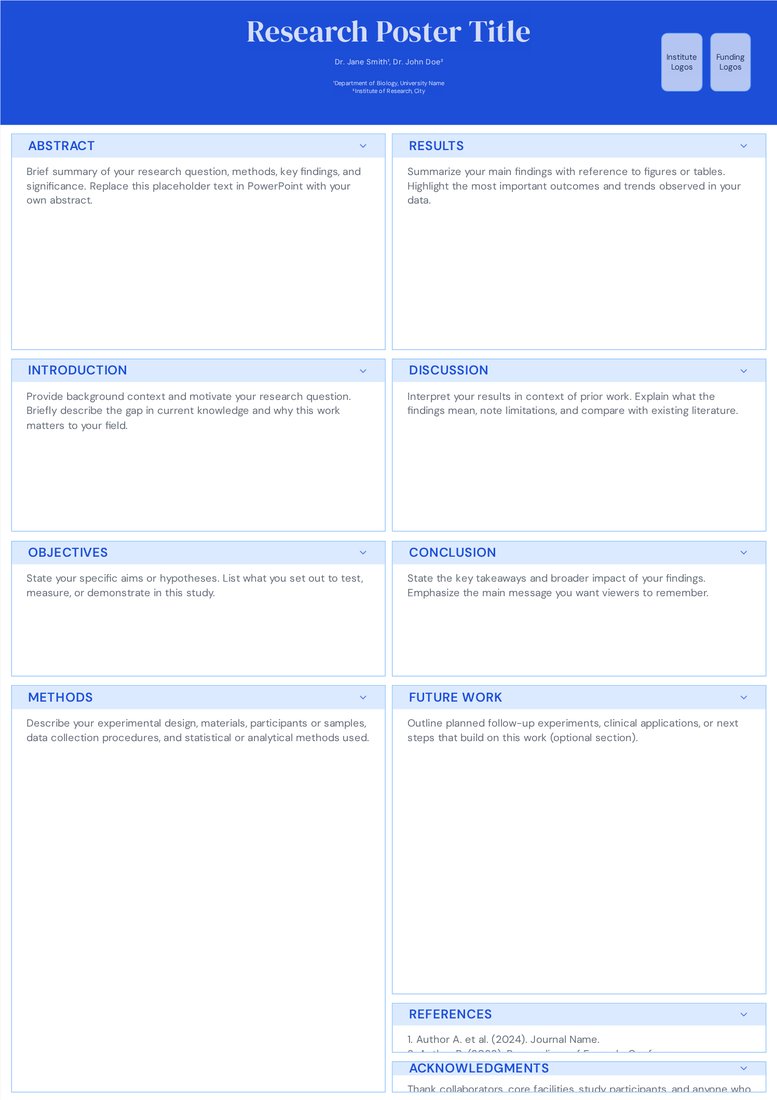
Classic Academic (Free)
Simple rectangles and text boxes. The easiest file for co-authors to edit in PowerPoint.
Open Classic Academic -
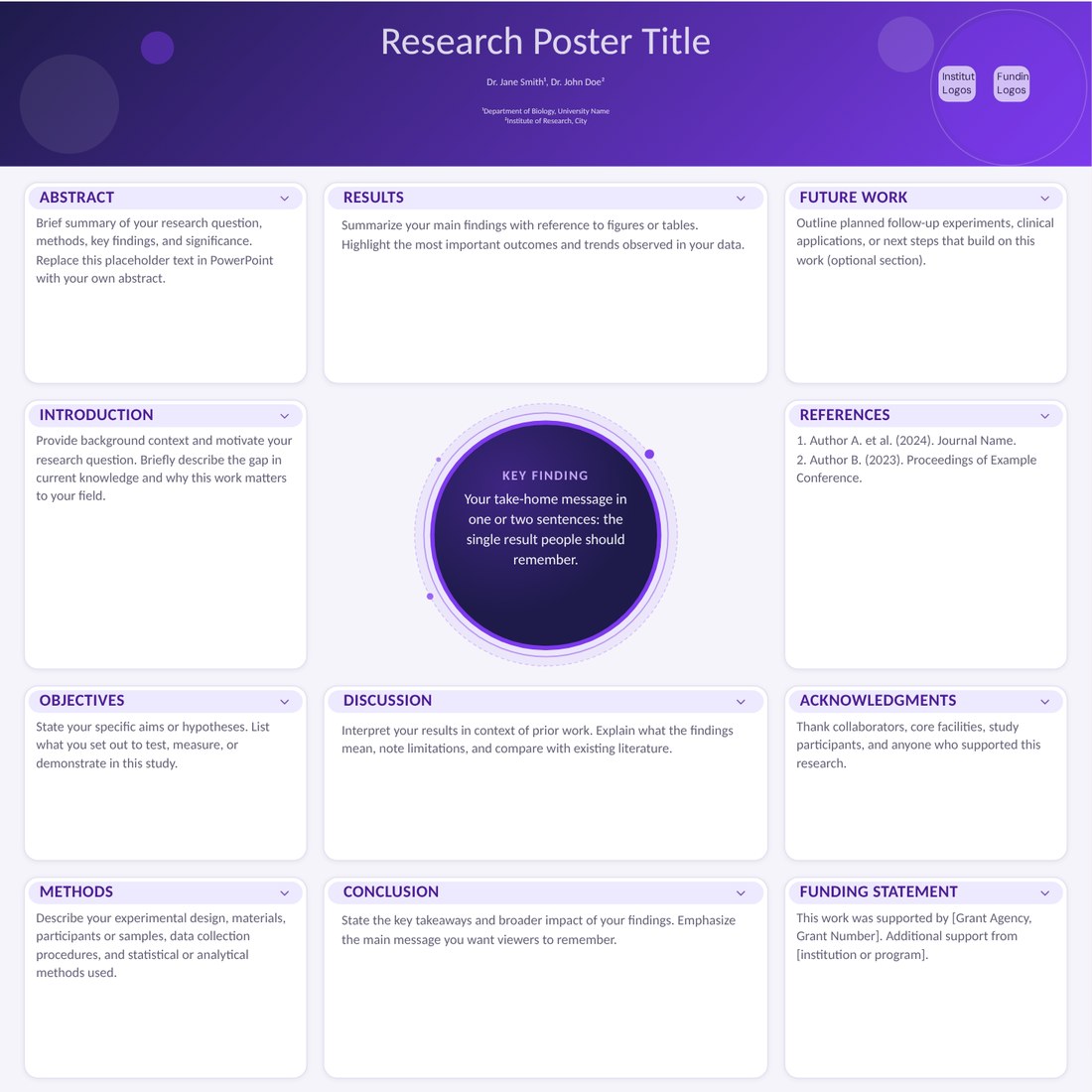
Orbit (Pro)
Shows that curved designs export too: the circular hub and rounded cards come through in the PowerPoint file.
Open Orbit
What you get in the .pptx file
- One slide set to the poster's physical width and height
- Every section as real, editable text boxes and shapes, not a flattened picture
- Your fonts, colours and logos applied, including brand kit settings for Pro users
Setting the slide size yourself
If you start from a blank PowerPoint file instead, open Design > Slide Size > Custom Slide Size and enter the width and height, choosing portrait or landscape. When PowerPoint asks whether to maximise or ensure fit, choose Ensure Fit on an empty slide. PowerPoint's maximum is 56 inches (142.24 cm) per side.
- A0 portrait: 84.1 x 118.9 cm
- 48 x 36 in landscape: 121.92 x 91.44 cm
- 36 x 48 in portrait: 91.44 x 121.92 cm
- Larger than 56 in: build at exactly half size and ask the printer to scale to 200 percent
Editing safely in PowerPoint
- Add figures with Insert > Pictures. Copy-paste from other programs can downgrade them to low-resolution bitmaps.
- Turn off compression in File > Options > Advanced > Image Size and Quality: tick 'Do not compress images in file' and set the default resolution to high fidelity.
- Group a figure with its caption so they move together.
- Use the Selection Pane (Home > Arrange > Selection Pane) to find hidden or stacked objects.
- Check spelling at the end; poster text boxes are easy to miss.
- Embed fonts in File > Options > Save if the file will be opened on another computer.
Printing from PowerPoint
Most print shops want a PDF, not a .pptx. On Windows use File > Export > Create PDF/XPS and choose 'Standard (publishing online and printing)'. On a Mac, use File > Export and pick PDF with best quality. Open the PDF, zoom to 100 percent and check the figures and edges before sending it.
Common PowerPoint poster pitfalls
- Designing on a 16:9 slide and asking the printer to stretch it: the proportions will be wrong.
- Body text below 24 pt at full size, which looks fine on screen but is unreadable on paper.
- Pixelated logos pulled from websites. Ask your communications office for vector versions.
- Text boxes that overflow off the slide and are cut off in the PDF.
- Fonts that are missing on the print office computer, which shifts every line break.
Frequently asked questions
Will the poster look the same in Keynote or Google Slides?
Keynote opens .pptx files well. Google Slides can import them but struggles with very large page sizes, so do final edits in PowerPoint or Keynote.
Why is my PowerPoint poster blurry when printed?
Usually image compression or pasted low-resolution figures. Turn off compression, re-insert figures with Insert > Pictures, and export a high-quality PDF.
Can I edit the downloaded file without PosterScientist?
Yes. The .pptx is a standard PowerPoint file that you own and can edit anywhere.